

How do I…
Using ETC Vault
ETC Vault is a downloadable Internet Explorer emulator used only when the Admin of the account has activated the requirement. To use ETC Vault, you will first need to download the program using the steps below, then unlock it with a 4-digit Key Code.
Admins:
To get started, log into the account using the Admin username, then go to the Setup tab, Clock In Restriction. From there, you can activate the restriction, view and edit Key Codes, and manage how many computers are allowed to use each Key Code. Each Key Code can be assigned to an individual username or can be available to all usernames.
Employees:
If you have your Key Code already, follow the download instructions below and enter the Key Code when prompted to do so. If you do not have a Key Code, please consult with the Admin of your account.

The ETC Vault is a specific restriction set up by the Admin. If your Admin has not set up this restriction, this type of login will not be functional. After downloading, you will need a Key Code to unlock the Vault. If you do not know your Key Code, please speak with your account Admin.
- Chrome:
- Download ETCVaultSetup.exe.
- Click the ETCVaultSetup.exe on the bottom left side of the window.
- Then click Run on the security warning.
- ETC Vault will open and get placed on your computer’s desktop, you can open it from there in the future.
ETC Vault FAQ
Try the manual download: Click to Download
Directions for Install:
Open Downloads folder on computer
Right click on the Vault zip file
Extract All
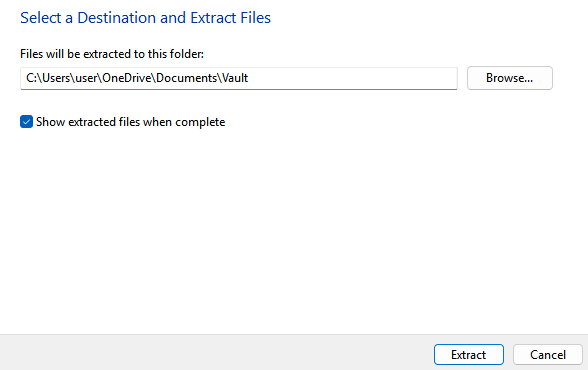
Click “Browse”

Select a location for the program to install, such as Documents (Desktop is NOT recommended)
Create a new folder
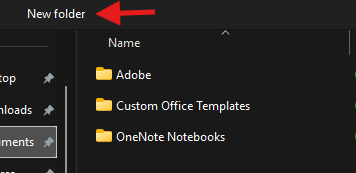
Name the folder “Vault”
Select the folder
Extract
Right click on “Vault” with blue shield icon
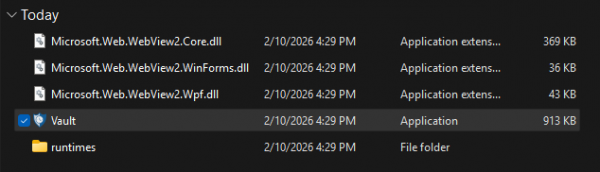
Options to make icon available:
Pin to Start
Pin to Taskbar
Send to Desktop
Copy as Path (then manually add shortcut to Desktop)
Are you sure you are looking for the ETC Vault specifically? If you are just needing to create a shortcut to the login page, you can do so with the “Create Shortcut” link located at the bottom of the login page. If you know the ETC Vault is what you’re needing, the Key Code can only be retrieved by the account Admin.
From the Admin account, go to the Setup tab, Clock In Restriction. If this restriction is set, you will see a “Show Key Code” button. Click the button and you will see the Key Code. Make sure there is a number larger than “0” in the Uses Remaining column.
The Admin is never restricted by the Clock In Restriction settings. You can use any browser on any device.
At this time, the ETC Vault is only offered on Windows devices. Speak with your account Admin for other restriction options.